G/I Grade Code Maintenance
This option is taken to initially create the GRADE CODE MASTER file and then to add new codes or make changes as necessary to codes currently existing in the file. The purpose of this file is to define the most common factors and the factors used to calculate a grade for a particular commodity.
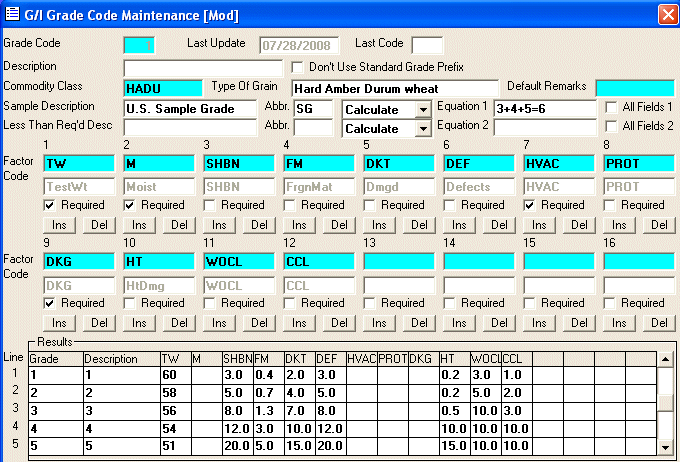
After selecting this option from the G/I Master File Maintenance Menu, the computer will display the Grade Code Maintenance screen as follows:
A) To add a new Grade Code to the file, enter the new, unused Grade Code that you are assigning and press [TAB].
B) To view/change an existing Code's information, enter the Grade Code of the record you wish to change, or Perform A Search to find a Grade Code record. After entering a valid Code, the information stored for that code will be displayed.
Enter the Description for this Grade Code which is only used if the Type Of Grain is not specific enough to identify what this grade code defines. (i.e. Grade Code 7 defines Yellow Corn that begins the grading at 1 so the description for this is left blank, Grade Code 207 defines Yellow Corn that begins the grading at 2 or better so the description for this is 2 or better.)
If you don't want the standard grade prefix to be added to the beginning of this commodity class, mark the Don't Use Standard Grade Prefix checkbox.
Enter the Commodity Class (or Perform A Search to find one). The Type Of Grain will be defaulted, enter the Type Of Grain if it is different than the defaulted value.
Enter the Default Remarks (or Perform A Search to find one) if this grade code will default a standard remark into the Remarks field.
Enter the Sample Description (Sample Grade Description) and Abbr. (Abbreviation which is defined by GIPSA and used solely for sending data through IDW) for this Grade Code.
Enter the Less Than Req'd Desc (Less Than Required Description) and Abbr. (Abbreviation which is defined by GIPSA and used solely for sending data through IDW) for this Grade Code. This will be defaulted on a Submitted sample if all the required fields are not filled in.
If you want this grade code to calculate (or check) factors, you may select up to two Equation Types.
Calculate Based upon the Equation described below, this will calculate and replace a specified factor.
Manual Based upon the Equation described below, this will calculate and compare a specified factor to what was inputted and makes sure that these values equal .
Enter Equation 1 and/or Equation 2 which are used to calculate (or check) a specified factor in the Submitted Samples Maintenance and Official Samples Maintenance programs. Valid information for this field are numbers 1 through 16, +, -, and =. This equation should be formatted in the following manner (#op#op#...op#=#) where # designates a number between 1 and 16 and op designates either + or -. In the example shown above (3+4+5=6), the system will add SHBN (Factor Code 3) plus FM (Factor Code 4) plus DKT (Factor Code 5) and put this result into DEF (Factor Code 6) (in the same equation, if the user would have selected Manual instead of Calculate, instead of storing the results automatically into DEF, the system would compare what was typed in to DEF to what was calculated for DEF and if these did not match, the system would generate an error message).
If you want all fields from the associated Equation filled in before calculating the result, mark the appropriate All Fields 1 and/or All Fields 2 checkbox.
Enter the Factor Code (or Perform A Search to find one). The short description will be displayed for verification and it will also be added to the headings of the Results detail. If this factor is required, mark the Required checkbox. Continue this process until all commonly used factors are defined for this grade code. If you wish to insert a factor, you may do so by clicking the Ins button located directly below the factor that you wish to insert before. If you wish to delete a factor, you may do so by clicking the Del buttons located directly below the factor you wish to delete.
Enter a detail line for each Grade that you wish to define for this grade code. Enter detail information as follows:
Enter the Grade which is defined by GIPSA and used solely for sending data through IDW.
Enter the Description that you want to appear on the certificate.
Enter the Results that define the minimum or maximum values that are required for this grade. In the example displayed above to calculate a grade of 1, TW must be greater than or equal to 60, SHBN must be less than or equal to 3.0, FM must be less than or equal to 0.4, DKT must be less than or equal to 2.0, DEF must be less than or equal to 3.0, HT must be less than or equal to 0.2, WOCL must be less than or equal to 3.0, and CCL must be less than or equal to 1.0.
The Last Update field indicates the last time master information for this record was changed. The software will maintain this date.
Review the data you have entered (or changed) on the screen. If you wish to SAVE the information, click on the Save button on the Toolbar, pick the Save option from the File Menu, or press [Ctrl][S]. If you do NOT wish to save the information, click on the Cancel button on the toolbar, pick the Cancel option from the File Menu, or press [Ctrl][L].