G/I Official Samples Maintenance
This option is used to initially enter official samples into the OFFICIAL SAMPLES file, add new official samples, and make changes to existing official samples.
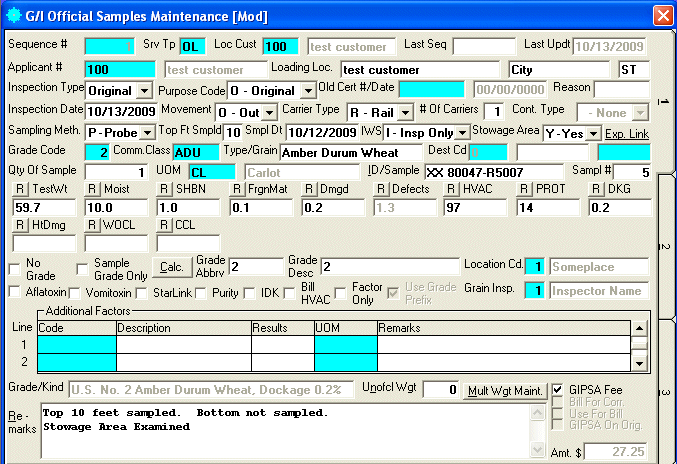
After selecting this option from the G/I Processing File, the computer will display the G/I Official Samples Maintenance screen as follows:
Enter the information on this screen as follows:
A) To add a new official sample, leave the Sequence number blank (if Don't Allow Zero Sequence Codes checkbox is NOT marked in the G/I Control File Maintenance) for the system to assign the next available sequence number or enter an unused Sequence number. The system will default the Inspection Date to the system date and the Srv Type (Service Type) will be defaulted to the value setup in G/I Control File Maintenance.
B) To view or change an existing official sample, enter the Sequence Number (or Perform A Search to find one) of the official sample you wish to change. Upon entering a valid sequence number, the computer will display the information stored for this official sample. Make changes in the same manner you entered the data.
Enter the Srv Tp (Service Type) (or Perform A Search to find one). Upon entering a valid service type the computer will default Movement, Carrier Type, # Of Carriers, Sampling Method, IWS (Inspection Weighing Service), Stowage Area, Grade Code, Qty Of Sample, Unit Of Measure, GIPSA Fee, Printed, and Posted To IDW stored in the Service Type's record.
Enter the Loc Cust (Location Customer #) (or Perform A Search to find one). Upon entering a valid location customer # the computer will default the Loading Location's Name, City, and State stored in the Location Customer record.
Enter the Applicant # (or Perform A Search to find one). Upon entering a valid applicant # the computer will display the name.
Enter the Name, City, and State of the location customer, if different than the defaulted values.
Select the appropriate Inspection Type and Purpose Code for this sample.
If the Inspection Type is a Reinspection or the Purpose Code is a Corrected Certificate, enter the Old Cert # (Old Certificate #) (or Perform A Search to find one) of the original sample that you wish to be re-inspected or corrected. Upon entering the Old Certificate #, if the old certificate # already exists, the program will ask "Do you wish to default the information from the old certificate number?". If you answer "Y", the information from the original sample will be defaulted into this new sample, and you will only need to change the information that needs to be changed; otherwise you will need to fill in all the information manually. Next enter the Old Certificate Date of the original sample. If this was a re-inspection, the computer will create the following statement in the remarks "This certificate supersedes certificate No. US-XX-#-#####, dated MM/DD/YYYY. Reinspection based on file sample. Other criteria results are those of original inspection service."
If the Purpose Code is a Corrected Certificate, enter the Reason. The computer will create the following statement in the remarks "This certificate is corrected as to xxxxxx and supersedes certificate No. US-XX-#-##### dated MM/DD/YYYY."
Enter the Inspection Date for this sample (if different than the default).
Select the Movement of this sample (if different than the default).
I - In The commodity is coming in to the customer's site.
O - Out The commodity is going of the customer's site to somewhere else in the U.S.A.
L - Local The commodity is staying at the customer's site.
E - Export The commodity is being exported from the customer's site to another country .
Select the Carrier Type of this sample (if different than the default).
Enter the # Of Carriers for this sample (if different than the default).
Select the Cont. Type (Container Type) of this sample. (This is currently only used in billing and different reports it is NOT sent to IDW and it is only available if the Carrier Type is Container.)
C - Comp. Composite grade.
A - Avg. Average grade.
S - Single Single grade.
Select the Sampling Meth. (Sampling Method) of this sample (if different than the default).
Enter the Top Ft Smpld (Top Feet Sampled) for this sample (if different than the default). Once you enter a value in this field, the computer will create a statement in the remarks similar to this "Top ## feet sampled. Bottom not sampled."
Enter the Smpl Dt (Sample Date) for this sample (if different than the default). If there are several sample dates for this certificate, use the most recent sample date.
Select the IWS (Inspection and Weighing Service) for this sample.
I - Insp Only Your agency only did the inspection on this sample and no weighing.
W - Weigh Only Your agency only did weighing of this sample and no inspection.
IW - Insp & Wgh Your agency did weighing and inspection of this sample.
Select the Stowage Area for this sample.
Y - Yes Creates the following message in the remarks. Stowage Area Examined
N - No Creates the following message in the remarks. Stowage Area Not Examined
C - Clean Creates the following message in the remarks. Stowage area examined on the above date and found substantially clean, dry, free of insects infestation, and suitable to store or carry grain or commodity.
Enter the Grade Code (or Perform A Search to find one). Upon entering a valid grade code the computer will default Commodity Class and Type Of Grain stored in the Grade Code record. It will also setup the factors used for this Grade Code.
Enter the Comm Class (Commodity Class) (or Perform A Search to find one) (if different than the default). Upon entering a valid commodity class the computer will default the Type Of Grain.
Enter the Type/Grain (Type Of Grain) (if different than the default).
Enter the Dest Cd (Destination Country Code) (or Perform A Search to find one) for this sample. Upon entering a valid Destination Country Code the computer will display the name of the country. (This is only enabled if the Movement is E - Export.)
Enter the Exp. Link (Export Link) (or Perform A Search to find one) for this sample. This is a unique code that you assign to each request for service which is used to link inspection and weighing export certificates. (This is necessary for IDW and it will automatically create a unique Service Request Number. It is only enabled if the Movement is E - Export.)
Enter the Qty Of Sample (if different than the default).
Enter the Unit Of Measure (or Perform A Search to find one) that applies to the Qty Of Sample. Upon entering a valid Unit Of Measure the computer will display the description.
Enter the ID/Sample (I.D. Of Sample) for this sample.
Enter the Sample # for this sample. This is a user assigned number that is used to further define the sample. This number will NOT go to IDW and can be duplicated on other official samples.
Enter the Factor Results
for this sample. There are predefined factor codes assigned to
each grade code. In the example shown above, the Grade Code of 2
contains the following factors TestWt, Moist, SHBN, FrgnMat,
Dmgd, Defects, HVAC, PROT, DKG, HtDmg, WOCL,
and CCL. If one of the Factor Results is disabled, it was
setup in Grade Code Maintenance to
calculate automatically. Additionally each factor has a button that
looks like this  .
This button is used to add a remark to the predefined factor. (Example
- FrgnMat is 0.3% and is made up of 0.1% Rye and 0.2% Barley and the customer
requires this breakdown on the certificate. To do this you would enter 0.3
in the factor results for FrgnMat and then you would click the
button that is left of the factor heading (FrgnMat) and fill into the
remarks popup screen Foreign Material Includes 0.1% of Rye and 0.2% of
Barley.)
.
This button is used to add a remark to the predefined factor. (Example
- FrgnMat is 0.3% and is made up of 0.1% Rye and 0.2% Barley and the customer
requires this breakdown on the certificate. To do this you would enter 0.3
in the factor results for FrgnMat and then you would click the
button that is left of the factor heading (FrgnMat) and fill into the
remarks popup screen Foreign Material Includes 0.1% of Rye and 0.2% of
Barley.)
If this does not get a grade and is NOT a Factor Only, mark the No Grade checkbox. (DO NOT CHECK THIS BOX IF THIS IS A FACTOR ONLY SAMPLE.) (Example - You have a sample of Yellow Corn that only needs an aflatoxin test and no other factor needs to be tested.)
If this is a sample grade only, mark the Sample Grade Only checkbox. If the Grade Abbrv and Grade Desc are empty, when you exit the Sample Grade Only field, these values will be automatically filled in. You may also click the Calc. button to calculate the results for Grade Abbrv and Grade Desc.
Enter the Grade Abbrv and Grade Desc of this sample, if different than the calculated values.
If this sample requires an aflatoxin test, mark the Aflatoxin checkbox. After clicking this checkbox, the Aflatoxin Factor Code which was setup in the Control File Maintenance will be defaulted into the Additional Factors section. You should fill this information in as described in the Additional Factors section shown below.
If this sample requires a vomitoxin test, mark the Vomitoxin checkbox. After clicking this checkbox, the Vomitoxin Factor Code which was setup in the Control File Maintenance will be defaulted into the Additional Factors section. You should fill this information in as described in the Additional Factors section shown below.
If this sample requires a starlink test, mark the StarLink checkbox. After clicking this checkbox, the Starlink Factor Code which was setup in the Control File Maintenance will be defaulted into the Additional Factors section. You should fill this information in as described in the Additional Factors section shown below.
If this sample requires a purity statement, mark the Purity checkbox. After clicking this checkbox, the Purity Message which was setup in the Control File Maintenance will be defaulted into the Remarks.
If this sample requires an IDK (Insect-Damaged Kernels) test, mark the IDK checkbox. After clicking this checkbox, the IDK Factor Code which was setup in the Control File Maintenance will be defaulted into the Additional Factors section. You should fill this information in as described in the Additional Factors section shown below.
If you wish to bill for Hard And Vitreous Kernels Of Amber Color, mark the Bill HVAC checkbox.
If this is a factor only sample, mark the Factor Only checkbox.
The computer will automatically mark and un-mark the Use Grade Prefix checkbox.
Enter the Location Cd. (or Perform A Search to find one) of the office that performed the analysis of the sample. Upon entering a valid Location Code the computer will display the description.
Enter the Grain Insp. (Grain Inspector) (or Perform A Search to find one) that performed the analysis of the sample. Upon entering a valid Grain Inspector Code the computer will display the name.
Enter a detail line for each Additional Factor that is required for this sample. Enter detail information as follows:
Enter the Code (or Perform A Search to find one) of the factor that was tested. Upon entering a valid Factor Code the computer will default the Description and UOM (Unit Of Measure).
Enter the Results for this factor.
Enter the UOM (Unit Of Measure) (or Perform A Search to find one) for this factor.
Enter the Remarks
for this factor. Based on the factor, this field might already be filled
in. If this is a factor that contains more than one default or has
parameters and Remarks field is empty or you push the Default Remarks  button (or press Alt+F5), the following screen will appear:
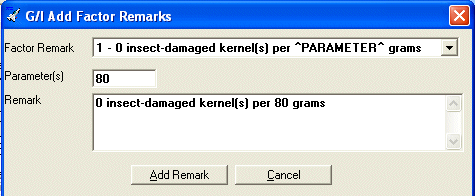
Select a user defined Factor Remark and enter any Parameter(s) that this remark requires. Once the Remark looks the way you want it, click the Add Remark button and this will replace the Remarks for this factor.
The computer will automatically fill in Grade/Kind.
If this certificate has a single unofficial weight associated with it, enter the Unofcl Wgt (Unofficial Weight) of this sample. (This should only be used if the Carrier Type is 1.)
If this certificate has multiple unofficial weights associated with it, click the Mult Wgt Maint (Multiple Weight Maintenance) button. (This should only be used if the Carrier Type is greater than 1.) The following screen will appear.
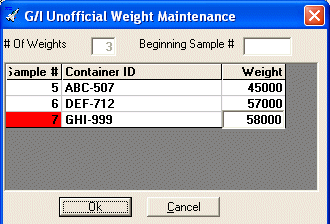
Enter the Weight that applies to the correct Container ID. Once all the weights are entered, click the Ok button to accept the changes or Cancel button to reject the changes. The # Of Weights to be entered is equal to the # Of Carriers specified for this sample. The Sample #'s are automatically created by the computer by taking the original Sample # specified for this sample and adding one to it for each additional weight. The Container ID's are automatically created by parsing the information in the remarks based upon values set in the Comment Setup listed below.
Enter the Remarks for this sample.
If you wish to default pre-defined remarks,
push the Add Standard Remarks  button (or press Ctrl+F3) and the following screen will appear.
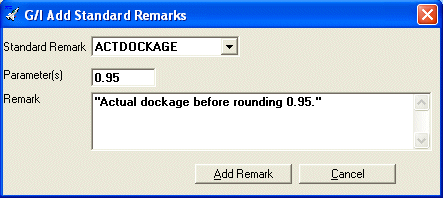
Select a user defined Standard Remark and enter any Parameter(s) that this remark requires. Once the Remark looks the way you want it, click the Add Remark button and this will replace the Remarks for this sample.
If you wish to
copy data from an excel spreadsheet into the Remarks,
push the Copy Containers From Spreadsheet  button (or press Ctrl+F5) and the following screen will appear.
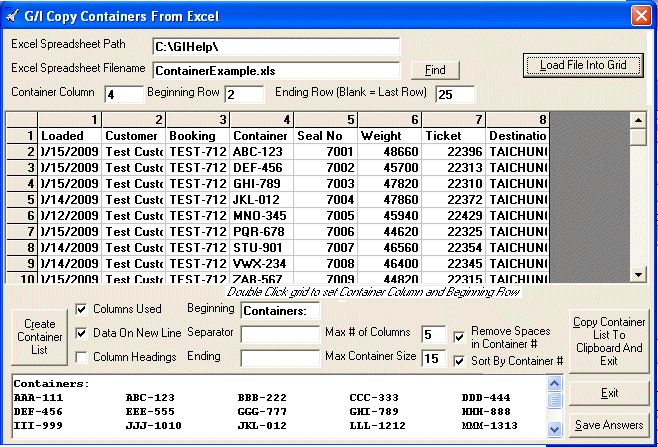
Enter the Excel Spreadsheet Path and Excel Spreadsheet Filename (or push the Find button to find one). After you enter a valid Excel Spreadsheet Path and Filename, push the Load File Into Grid button
Enter the Container Column and Beginning Row or position your mouse over the container column and first row that you wish to import and double-click the mouse button (this will automatically fill in the Container Column and Beginning Row).
Enter the Ending Row (if you wish to import all rows into the container list you can leave this field blank).
If you wish to have the containers be separated into columns mark the Columns Used checkbox.
If you wish to have the container data begin on the next line below the Beginning data check the Data On New Line checkbox.
If you wish to have headings for the columns check the Column Headings checkbox. (This is only applicable if the Columns Used checkbox is marked.)
Enter the Beginning Data which will be inserted at the beginning of the container list.
Enter the Separator which will be inserted between each container in the container list.
Enter the Ending Data which will be inserted at the end of the container list. (This is necessary if you are going to put more remarks after the container list.)
Enter the Max # of Columns (maximum number of columns) per line. (This is only applicable if the Columns Used checkbox is marked.)
Enter the Max Container Size (maximum container size) in characters. The computer will use this to determine the size of the column by taking the container number and filling it with spaces until it reaches to the maximum number of characters allocated for each column. In the example shown above the Max Container Size is 15 which will create columns of 15 characters and there is will be a space between each container because the Separator contains one space. (This is only applicable if the Columns Used checkbox is marked.)
If you want the all spaces removed from the container numbers, mark Remove Spaces in Container # checkbox.
If you want the container list to be sorted in container number order, mark the Sort By Container # checkbox.
If you want these answers to be defaulted for the next spreadsheet that you import, click the Save Answers button.
Once all the answers are inputted correctly, click the Create Container List button. This will create the container list in the text box at the bottom of the form. If this information looks correct, click the Copy Container List To Clipboard And Exit button. This button will return you to the Remarks field. Position your cursor to where you want to put the container list and paste the container list.
If this sample requires a GIPSA fee (used for computing government supervision or administrative tonnage fees), mark the GIPSA Fee checkbox.
If this sample has a Purpose Code of V - Corrected and you wish to bill for this correction, mark the Bill For Correction checkbox. (Example - The billing correction was caused by the customer supplying you with information that was NOT correct.) (This will not display if you have marked the Don't Show Bill Correction checkbox in the Control File Maintenance.)
If this sample has a Purpose Code of V - Corrected and you wish to use the corrected certificate for billing instead of the old certificate, mark the Use For Bill checkbox.
If the Use For Bill checkbox is marked and you wish to use the GIPSA fee that is on the old certificate instead of this certificate for billing, mark the GIPSA On Orig. checkbox.
The computer will automatically fill in Amt. $$. (This will not display if you marked the Don't Show Amount checkbox in the Control File Maintenance.)
When you have finished entering data on the first screen, click on tab 2 or press [Alt][2] to display the second screen as follows:
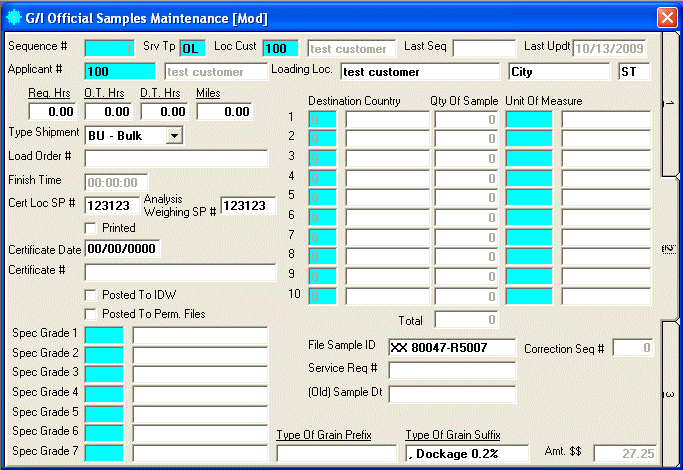
Enter Reg Hrs. (Regular Hours), O.T. Hrs. (Overtime Hours), D.T. Hrs. (Double Time Hours), and/or Miles that you wish to bill for this sample.
Select the Type Shipment for this sample.
BU - Bulk
SA - Sack
Enter the Load Order # for this sample.
Enter the Finish Time for this sample (if enabled).
Enter the Cert Loc SP # (Certificate Location Service Point Number) for this sample. This will be automatically filled in by Certificate Location SP # which was setup in the Control File Maintenance.
Enter the Analysis Weighing SP # (Analysis Weighing Service Point Number) for this sample. This will be automatically filled in by the Service Point # of the Location Code that you entered.
If the certificate was already printed, mark the Printed checkbox. (This will be checked automatically when you print an original certificate for this sample.)
Enter the Certificate Date for this sample. (This will be filled in automatically when you print an original certificate for this sample.)
Enter the Certificate # for this sample. (This will be filled in automatically when you print a certificate (original or copy) for this sample.)
If this sample was already posted to IDW (Inspection Data Warehouse), mark the Posted To IDW checkbox. (This will be checked automatically when you post this sample to IDW.)
If this sample was already posted to permanent files, mark the Posted To Permanent Files checkbox. (This will be checked automatically after you print this sample on an invoice and that invoice gets posted.)
Enter Spec Grade 1-7 (Special Grade 1-7) (or Perform A Search to find one). The description will be displayed for verification and the Spec Grade Desc from the Factor file will also be added to the Type Of Grain Prefix or the Type Of Grain Suffix (based on how this special grade was setup in the Factor Maintenance). Continue this process until all special grades are defined for this sample.
If this sample is being exported to more than one country, enter Destination Country 2-10 (or Perform A Search to find one). The name of the country will be displayed for verification. Next enter the Qty Of Sample and Unit Of Measure (or Perform A Search to find one) that the destination country will receive. (The computer will automatically adjust destination country one's Qty Of Sample to be the amount left after distributing the quantities to the other countries.) Continue this process until all destination countries are defined for this sample.
Enter the File Sample ID for this sample. (The computer will replace File Sample ID with I.D. Of Sample and it will not be enabled if you have marked the Move ID Of Sample To File Sample ID checkbox in the Control File Maintenance.)
Enter the Service Req # (Service Request #). If this field is left blank, the computer will automatically fill this information in when the record is saved. The only reason for entering information into this field would be if you specified the wrong Exp. Link or you forgot to tie export tickets together when the certificate was saved.
Enter the (Old) Sample Dt for this sample. (This information was used in the older DOS version of this software and is no longer being used other than for historical data purposes.)
The computer will automatically fill in Correction Seq #. This will be filled in with the sequence # of the new sample that is correcting this sample.
The computer will automatically fill in Type Of Grain Prefix and Type Of Grain Suffix. These two fields will be used to fill in the Grade/Kind.
When you have finished entering data on the second screen, click on tab 3 or press [Alt][3] to display the third screen as follows:
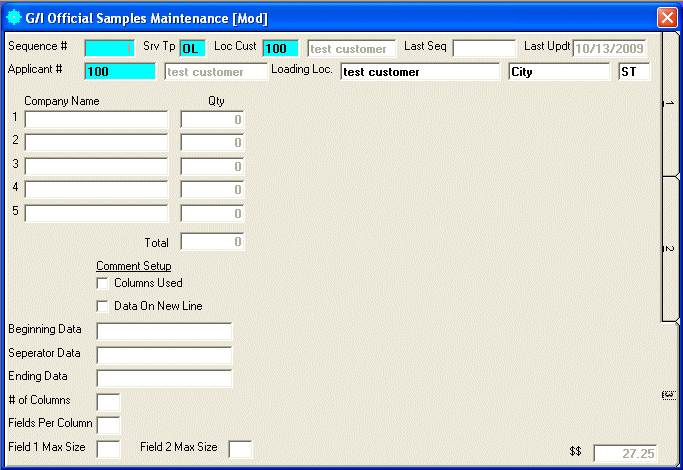
If you are using the Breakdown Qty By Company option setup in the Control File Maintenance, distribute the Qty to up to 5 different companies.
The following fields are used to define how to import data from an excel spreadsheet into the Remarks, and how to parse the Remarks field for use in Multiple Weight Maintenance and Print Invoices. Two examples are shown to better define how these fields work.
CONTAINERS:
ABC-5004 DEF-4005 GHI-9007
JKL-4507 MNO-6547 PQR-1234
CONTAINERS: ABC-5004; DEF-4005; GHI-9007; JKL-4507;
MNO-6547; PQR-1234.
If columns are used to identify the data, mark the Columns Used checkbox. If this is checked the remarks would have a format similar to Example A. If this is NOT checked the remarks would have a format similar to Example B.
If the information begins on a different line than the Beginning Data, mark the Data On New Line checkbox. If this is checked the actual data would start on a different line as shown in Example A. If this is NOT checked the actual data start on the same line as shown in Example B.
Enter the Beginning Data which is used to determine where the parsing will begin. In the Example A and Example B the value of Beginning Data should be "CONTAINERS:".
Enter the Separator Data which is used to determine where the next field begins. In the Example A the value of Separator Data should be left blank. In the Example B the value of Separator Data should be ";".
Enter the Ending Data which is used to determine where the parsing will end. In the Example A the value of Ending Data should be left blank. In the Example B the value of Ending Data should be ".".
If you marked the Columns Used checkbox, enter the # Of Columns. In the Example A the value of # Of Columns should be "3". In the Example B the value of # Of Columns should be left blank.
If you marked the Columns Used checkbox, enter the Fields Per Column. In the Example A the value of Fields Per Column should be "1". In the Example B the value of Fields Per Column should be left blank.
If you marked the Columns Used checkbox, enter the Field 1 Max Size. In the Example A the value of Field 1 Max Size should be "15". In the Example B the value of Field 1 Max Size should be left blank.
If you marked the Columns Used checkbox and Fields Per Column is "2", enter the Field 2 Max Size. In the Example A the value of Field 2 Max Size should be left blank. In the Example B the value of Field 2 Max Size should be left blank.
Review the data you have entered (or changed) on the screens. If you wish to SAVE and PRINT the certificate, click on the Print icon on the Toolbar, pick the Print option from the File Menu, or press [Ctrl][P]. If you wish to SAVE the information, click on the Save icon on the Toolbar, pick the Save option from the File Menu, or press [Ctrl][S]. If you do NOT wish to save the information, click on the Cancel icon on the toolbar, pick the Cancel option from the File Menu, or press [Ctrl][L].